
Windows
Windows PC setup
Use your AV Matrix email address and password when prompted.
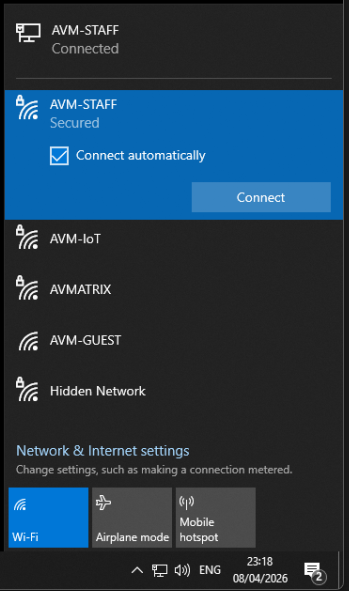
- Click the Wi-Fi icon in the taskbar.
- Select AVM-STAFF.
- Click Connect. Select Connect automatically to reconnect easily in future.
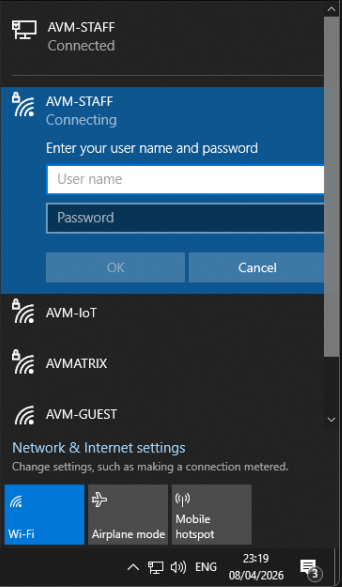
- When prompted, enter your full email address, for example [email protected], and your password.
- If you see a certificate or trust prompt, review it and continue to connect.
Tip
If Windows says it cannot connect, forget the network and try again, making sure you use your full email address rather than just your username.
iPhone / iPad
iPhone and iPad setup
Install the Wi-Fi profile first, then connect using your AV Matrix email address and password.
- Open this page in Safari.
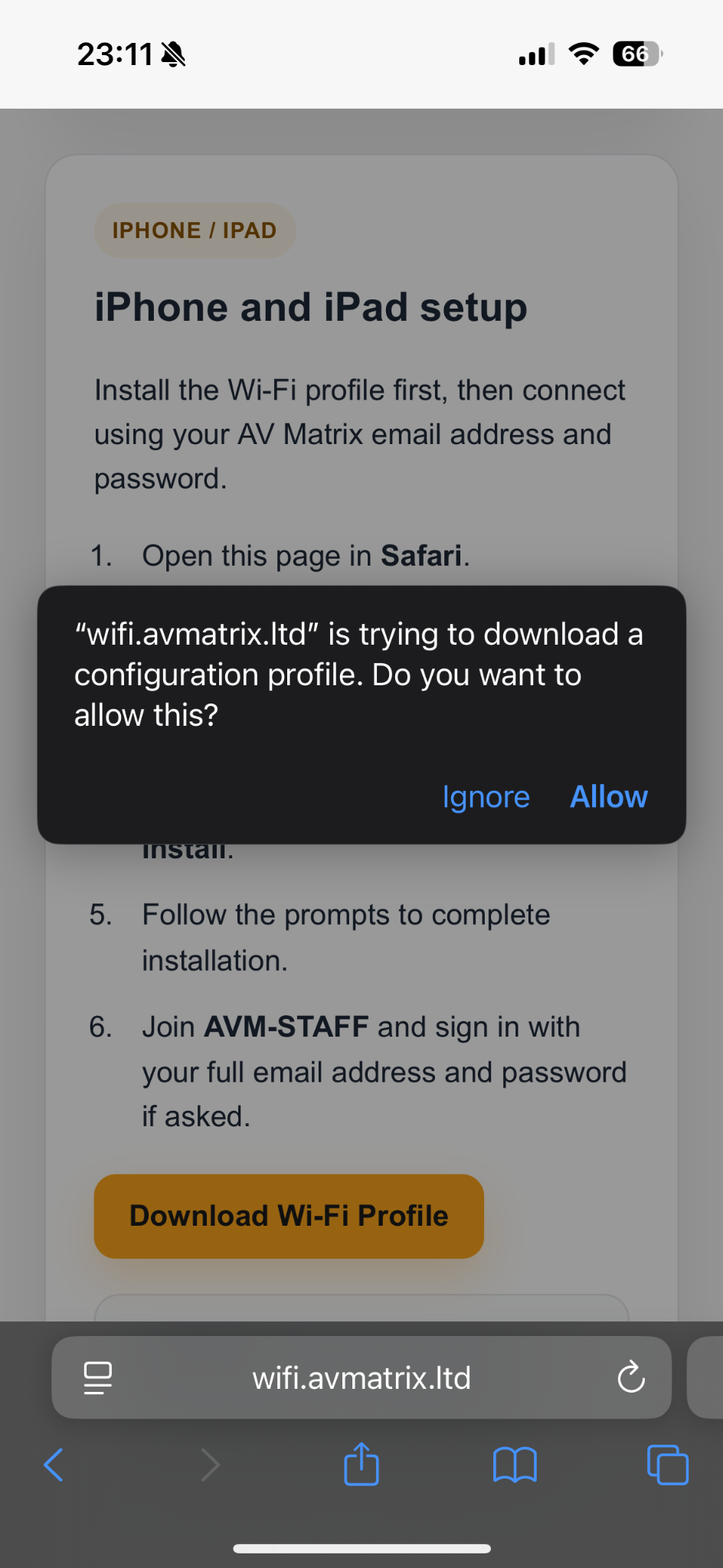
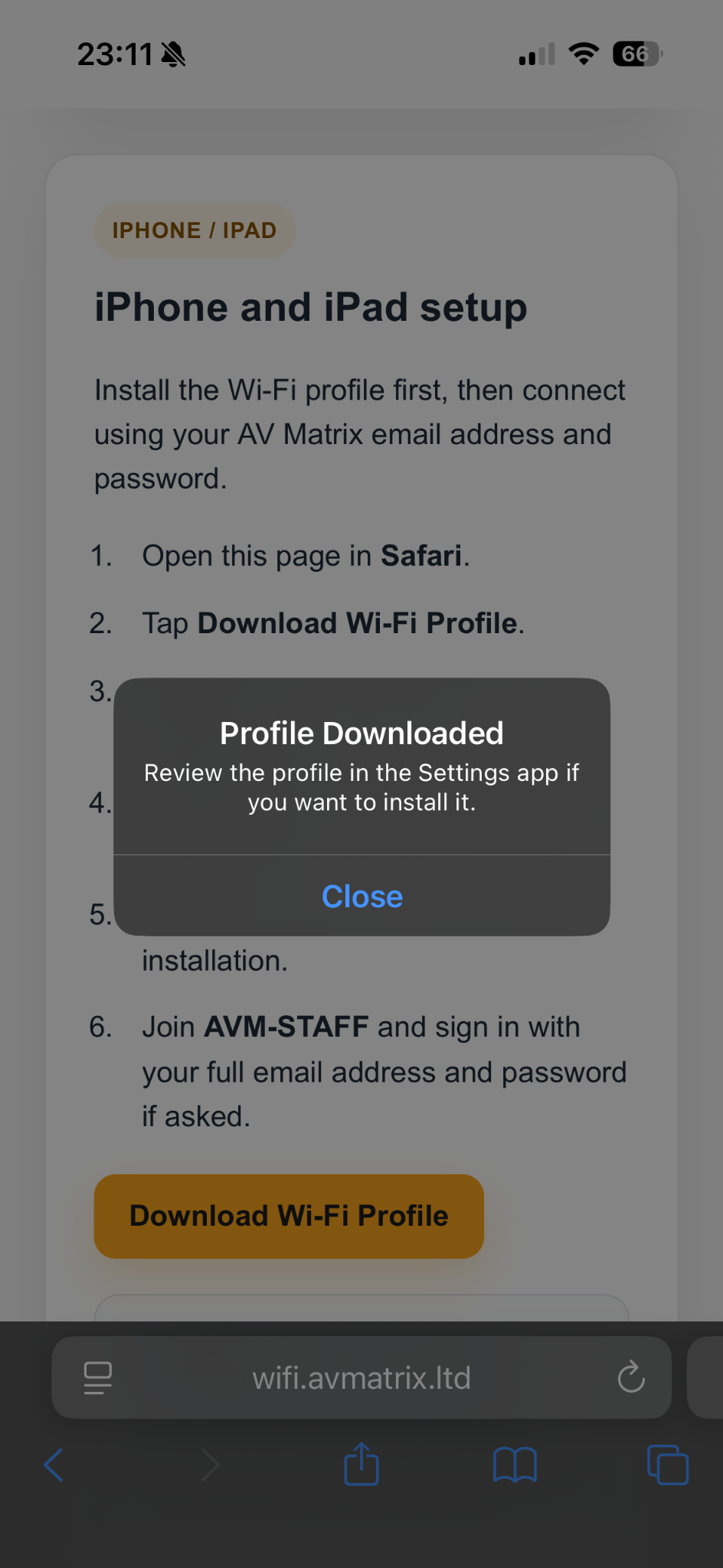
- Tap Download Wi-Fi Profile, then tap Allow when asked.
- After the download finishes, open Settings.
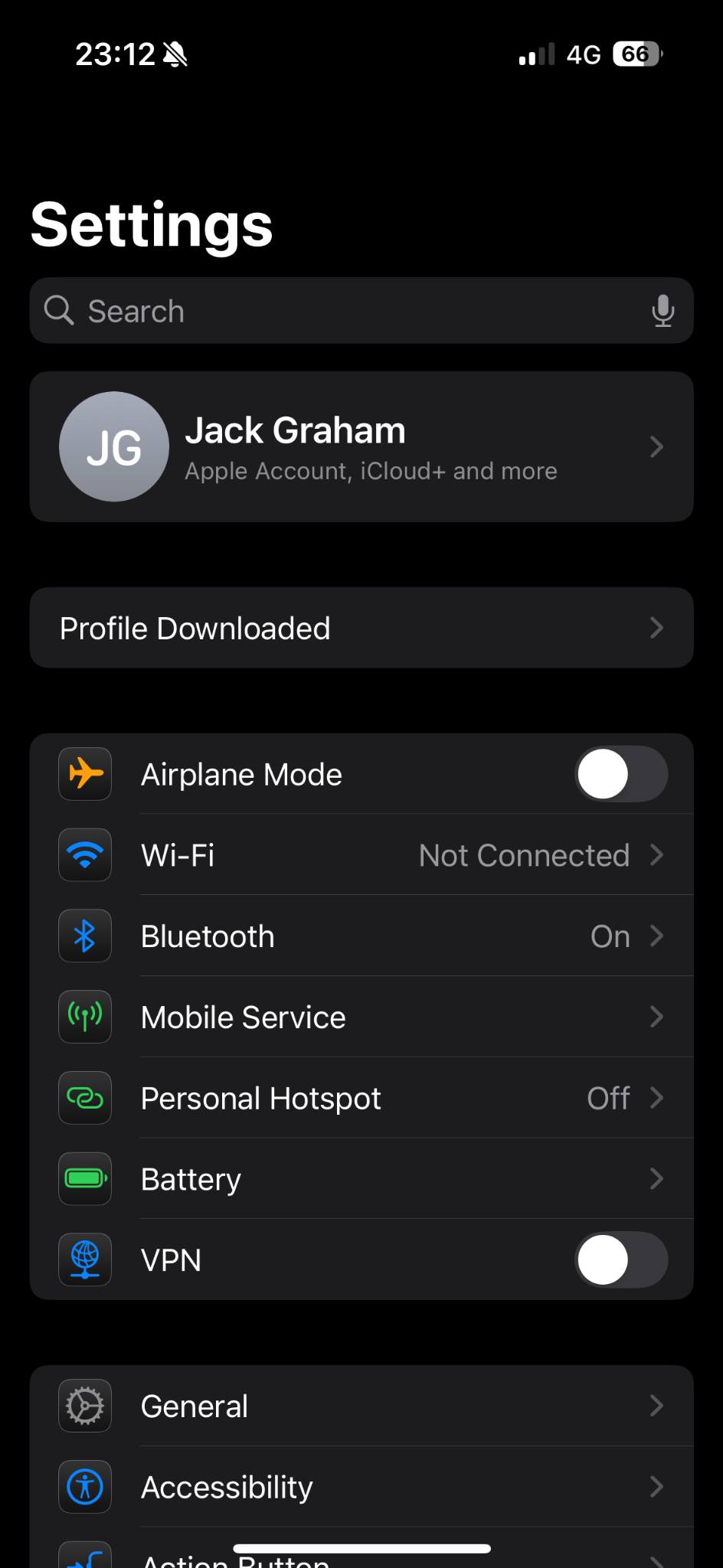
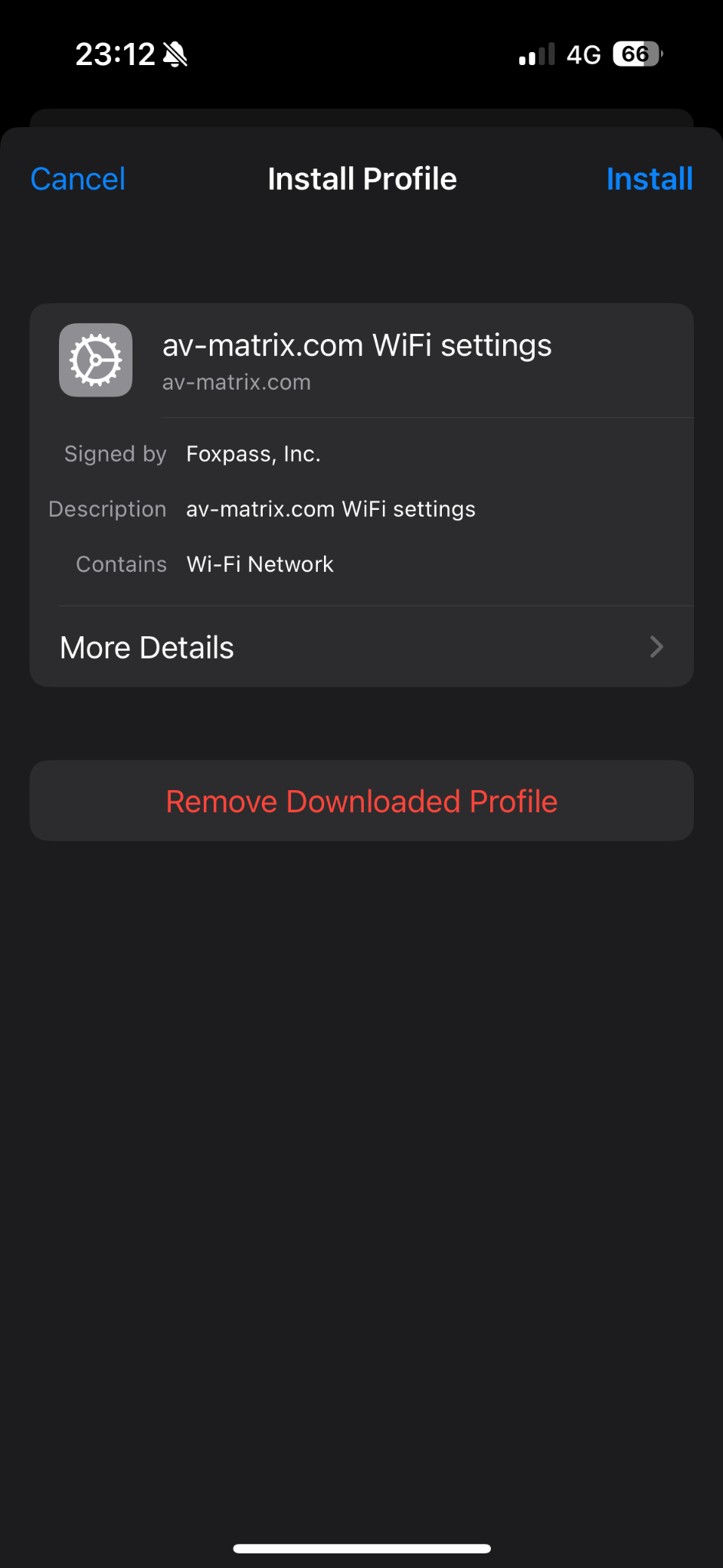
- Profile Downloaded should appear near the top of Settings. Tap it, then tap Install.
- If Profile Downloaded does not appear, go to Settings → General → VPN & Device Management and open the downloaded profile there.
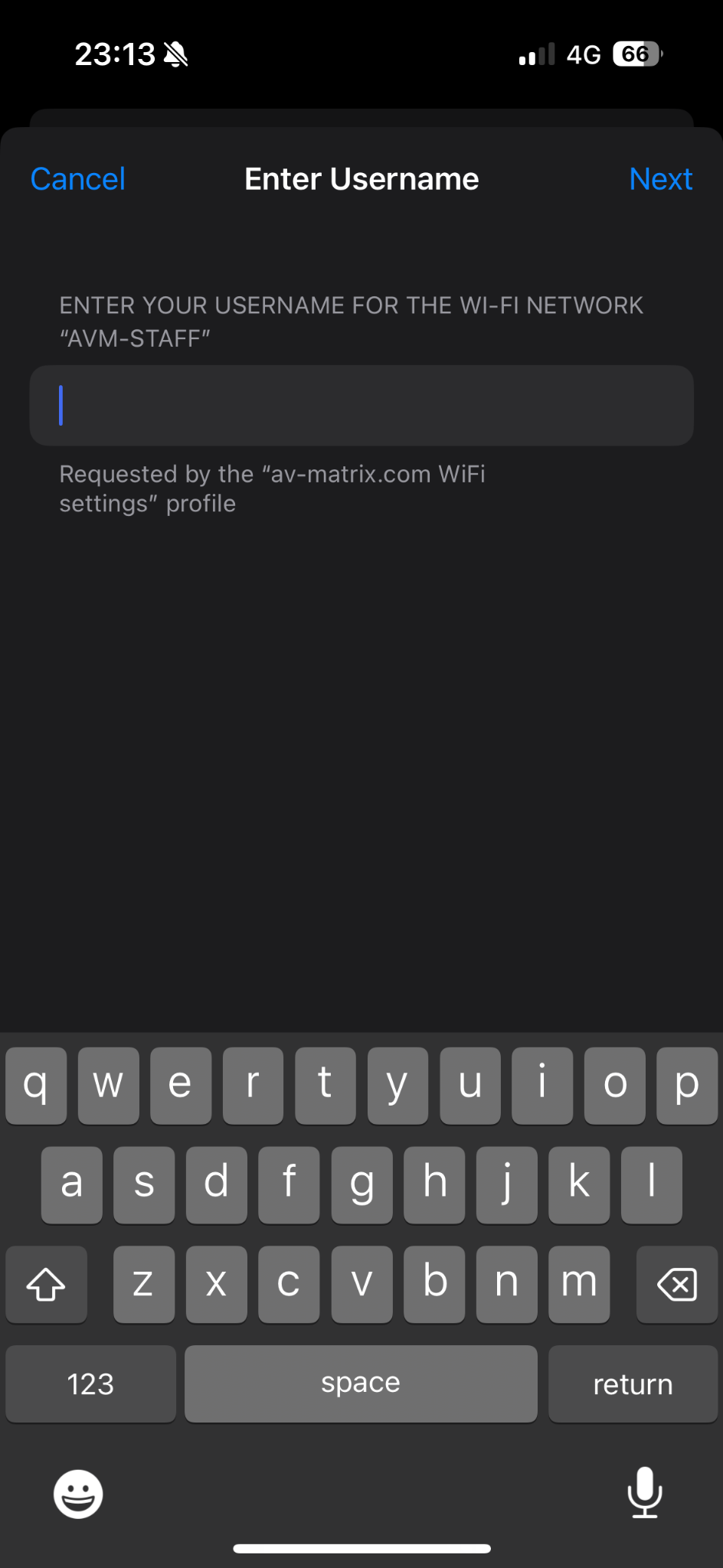
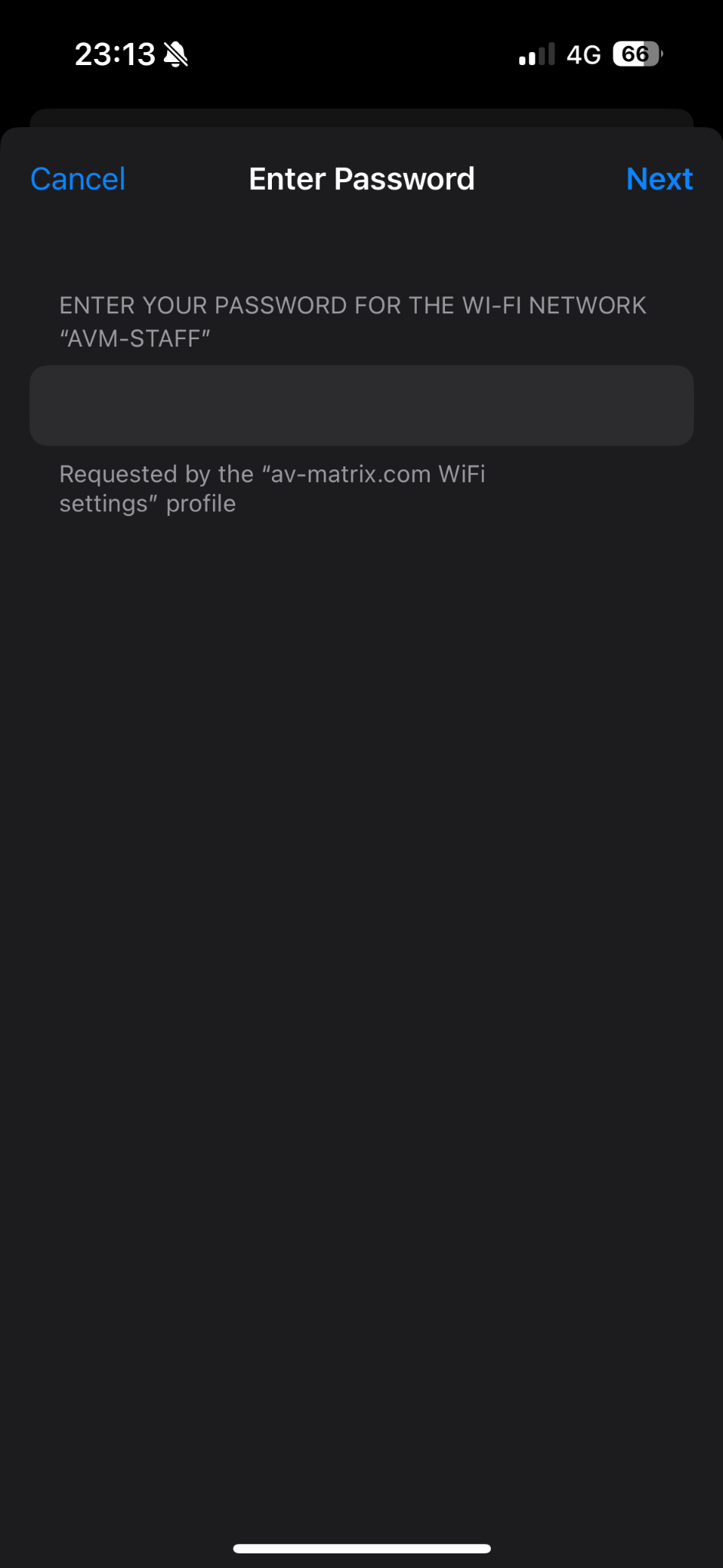
- Follow the prompts to complete installation, then join AVM-STAFF.
- When asked, sign in with your full @av-matrix.com email address and password.
Important
Safari is required for downloading and installing the iPhone or iPad profile smoothly.
macOS
Mac setup
Download the Wi-Fi profile, install it in System Settings, then connect using your AV Matrix email address and password.
- Click Download Wi-Fi Profile below.
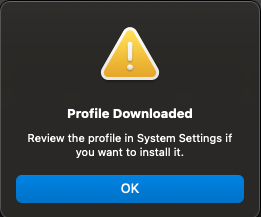
- Open the downloaded file. Your Mac should prompt you to go to System Settings to review and install it.
- Profile Downloaded may appear. Open it if shown.
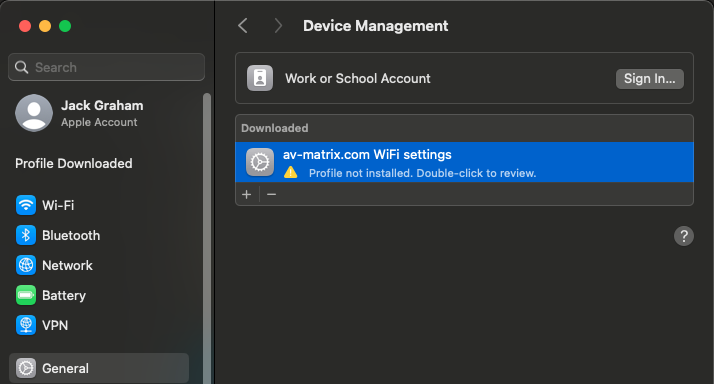
- If Profile Downloaded does not appear, go to System Settings → General → Device Management.
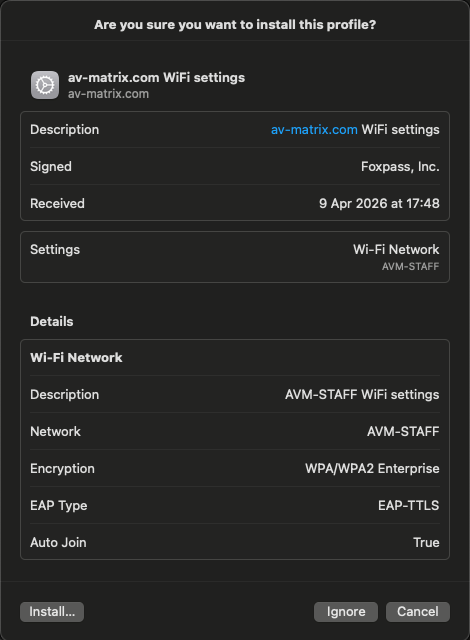
- Open the av-matrix.com WiFi settings profile and continue with installation.
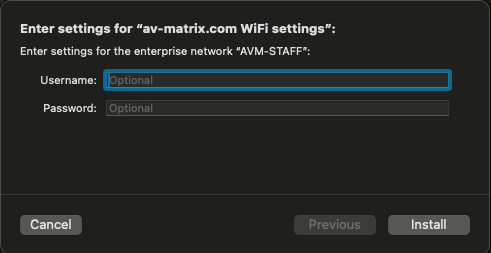
- When prompted during installation, enter your full @av-matrix.com email address and your password.
- After installation, connect to AVM-STAFF.
Android
Android setup
Android setup screens vary by phone model and Android version, but these are the usual settings to use.
- Open Settings, then Wi-Fi.
- Select AVM-STAFF.
- For EAP method, choose TTLS.
- For Phase 2 authentication, choose PAP.
- For CA certificate, choose Use system certificates if available.
- For Domain, enter foxpass.com.
- For Identity, enter your full email address, for example [email protected].
- Enter your AV Matrix password, then tap Connect.
Note
Android labels can vary slightly by device.
Need help?
If you still cannot connect, contact Jack for assistance.